This free Gemini Spark setup guide will help you check access, open Spark, review your Google Workspace Connected Apps, create a focused Google Drive workspace, personalize Spark with an about-me document, and complete your first starter task. It is written for beginners, business owners, and professionals. No coding or technical experience is required.
Gemini Spark runs inside Gemini Apps, meaning there is no local desktop app to install and no local folder connection required. Instead, Spark can use supported sources such as Connected Apps, selected files, skills, schedules, websites, and approved task context. This guide focuses specifically on first-time setup. For the broader operating manual, read How to Use Gemini Spark: Complete Guide next.
What you will accomplish
Your complete beginner Gemini Spark setup
By the end of this guide, you will know whether your account can access Spark, have Spark open, have Google Workspace Connected Apps checked, have a dedicated My_AI_Workspace folder created in Google Drive, have a personalized about-me Google Doc, and have your first starter plan saved inside your OUTPUTS folder.

Gemini Spark setup overview
The entire setup follows six basic actions. You will complete each one in detail below.
Go to gemini.google.com, switch to Spark, and open the Tasks area.
Review Google Workspace access before asking Spark to use Drive, Gmail, Docs, or Calendar.
Set up a root folder named My_AI_Workspace inside your Google Drive.
Create ABOUT-ME, PROJECTS, and OUTPUTS inside your root folder.
Create and update your about-me Google Doc inside the ABOUT-ME folder.
Submit a test prompt to generate and save your starter plan.
Before you begin
Check the Gemini Spark requirements
Gemini Spark is built directly into Google’s cloud ecosystem and is available through supported Gemini web and mobile app experiences. You do not need to install local desktop software, use a terminal, or set up local folder connections.
Use the Gemini web app at gemini.google.com or the Gemini mobile app. There is no separate Spark desktop app to install.
Google currently lists Spark as requiring a personal Google Account with a Google AI Ultra subscription.
You must meet Google’s current Spark requirements, including age, Keep Activity, language, and supported-location rules.
Creating your Google Drive workspace folders is free, but Gemini Spark itself currently requires an eligible personal Google Account with Google AI Ultra and Google’s other access requirements. Pricing, plan names, supported regions, and feature availability can change.
For the latest subscription, account, language, activity, and region requirements, see Google’s official Gemini Spark help documentation.
- You are using a personal Google Account that you manage yourself.
- Your account has Google AI Ultra or another currently eligible Spark access path listed by Google.
- You are 18 or older.
- Gemini Apps Keep Activity is turned on.
- You are using English for Spark.
- Your location is currently supported by Google.
- You have 15 minutes of uninterrupted focus to complete the setup.
Access the agent
Open Gemini and switch to Spark
Gemini Spark is accessed from inside Gemini. You do not need to visit a different Spark website or download a standalone application.
- Open the Gemini web app at gemini.google.com or open the Gemini mobile app on an eligible account.
- Sign in using your eligible personal Google Account.
- Open the Gemini sidebar or navigation menu.
- Select Change mode, then choose Switch to Spark.
- Open Tasks to create your first Spark workflow.
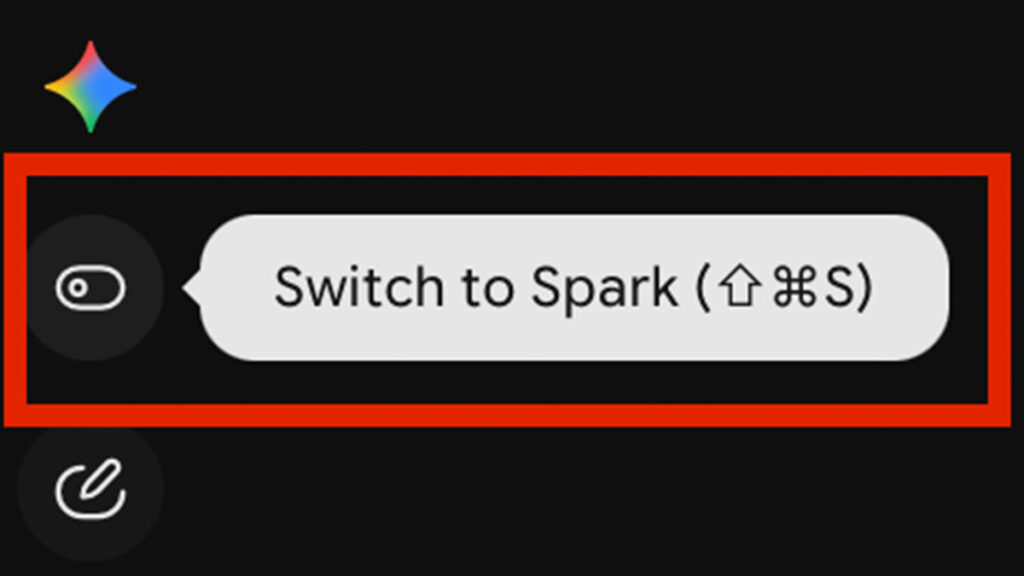
- You are logged into gemini.google.com.
- You have successfully switched to Spark.
- You can see the Tasks area.
Integrations
Check your Google Workspace Connected Apps
To ask Gemini Spark to use Drive, Docs, Sheets, Gmail, Calendar, or other supported Google services, review your Gemini Connected Apps settings first. Google may label these as Connected Apps or extensions depending on the interface.
- Inside Gemini, open Settings or Settings & help.
- Locate Connected Apps, Extensions, or the Google Workspace connection setting.
- Confirm Google Workspace is connected before asking Spark to use:
- Google Drive: search, read, create, and organize selected files when supported.
- Google Docs & Sheets: view, summarize, create, and edit supported document or spreadsheet content.
- Gmail: search, summarize, and draft supported email actions.
- Google Calendar: review schedules and prepare calendar-related actions when supported.
For beginner tasks, name the exact Drive folder or file Spark should use and review the work panel before relying on any result. Do not paste passwords, payment details, API keys, or sensitive private information directly into a Spark task thread.
- You checked whether Google Workspace is connected in Gemini Apps.
- You understand that available app actions can vary by account, platform, permissions, and current Google feature support.
- You will point Spark to your dedicated workspace folder instead of asking it to search your whole Drive for this first task.
Directory setup
Set up your workspace folders on Google Drive
Because Gemini Spark operates through Gemini and cloud services, your beginner workspace should live in Google Drive. The goal is not to give Spark a broad, vague instruction to search everything. The goal is to create one clear folder you can reference in tasks.
To keep the setup organized, create a dedicated folder structure before running your first task.
- Open your Google Drive.
- In your root directory, create a new folder named exactly
My_AI_Workspace. - Open the new
My_AI_Workspacefolder and create three subfolders:ABOUT-ME: Where you will place your personalization file.PROJECTS: Where you will upload notes and files Spark needs to analyze.OUTPUTS: Where Spark will save completed deliverables (reports, summaries, and sheets).
Google Drive/My_AI_Workspace/
|-- ABOUT-ME/
|   `-- about-me (Google Doc)
|-- PROJECTS/
`-- OUTPUTS/Think of it like giving a new assistant a clearly labeled work area. This setup keeps your first tasks focused, gives Spark a specific folder path to follow, and makes it easier for you to verify where finished files were saved.
- The root folder
My_AI_Workspaceis created in Google Drive. - Inside it, you have three folders:
ABOUT-ME,PROJECTS, andOUTPUTS.
Personalization
Create and personalize your about-me document
Now, let’s teach Gemini Spark who you are, how you work, and what style you prefer. We do this by creating a profile document that Spark can refer to before starting any task.
- Open your Google Drive and navigate into the folder:
My_AI_Workspace/ABOUT-ME/. - Create a new Google Document and name it exactly
about-me. - Copy and paste the template structure below into the document, then replace all bracketed placeholders with your real answers. Make sure to delete the brackets!
# About Me

- **Name:** [YOUR NAME]
- **Role:** [WHAT YOU DO]
- **Main Goal:** [YOUR MAIN GOAL]
- **Target Audience:** [WHO YOU HELP]
- **Communication Style:** [STYLES]
- **Frequent Tasks:**
  - [TASK 1]
  - [TASK 2]
- [TASK 3]You don’t need to write a long biography – less is more. Provide only the essential context. If you write too much background, it makes it harder for Spark to pick out the important rules.
- A Google Doc named
about-meis saved insideMy_AI_Workspace/ABOUT-ME/. - All bracketed placeholders have been replaced with your real, personal details.
- The document is saved and closed.
Test run
Run your first Gemini Spark task
Your workspace folders are ready, your profile document is configured, and your Connected Apps settings have been checked. Now run a low-risk test task to confirm the setup works.
Action 1: Confirm profile reading
Open Gemini Spark Tasks in your browser and enter the following prompt to test if the agent can find and read your profile Google Doc:
Read my "about-me" Google Document in Google Drive at:
My_AI_Workspace/ABOUT-ME/about-me

Tell me what you now understand about me, my work, my audience, my goals, and my preferred style.

Do not create, edit, delete, send, publish, schedule, or change anything yet. Just summarize what you understand and confirm when you are ready for the next task.
Allow the agent a moment to search your Google Drive, read the file, and reply. Once it successfully reports your profile details, you are ready for Action 2.
Action 2: Create your first starter document
Now, let’s ask Gemini Spark to create and save a new starter plan document inside your workspace OUTPUTS folder:
Great! Based on my "about-me" Google Document in:
My_AI_Workspace/ABOUT-ME/about-me

Create my first Gemini Spark starter plan.

Save it in Google Drive inside:
My_AI_Workspace/OUTPUTS

Name the Google Doc:
my-spark-starter-plan

Please include:
1. A short summary of who I am
2. What you understand about my work or goals
3. Five useful tasks you could help me with using Gemini Spark and Google Workspace
4. Three simple project ideas we could create together next
5. A short "next best task" recommendation for me

Before saving, confirm that you will only create the new Google Doc inside My_AI_Workspace/OUTPUTS.
You can monitor the live steps under the Progress tab in your Work Panel at the top of the chat. Once complete, navigate to your Google Drive and open My_AI_Workspace/OUTPUTS/ to verify the newly created Google Doc is there!
- Spark successfully found and summarized your
about-medocument. - Spark successfully wrote and saved your
my-spark-starter-planGoogle Doc. - You verified the output Google Doc exists inside your Google Drive
My_AI_Workspace/OUTPUTS/folder.
Gemini Spark safety tips for beginners
Because Gemini Spark operates across real personal services, maintaining solid digital hygiene is critical:
- Start with low-risk tasks: Use Spark for planning, summarizing, research, and draft documents before asking it to send, publish, delete, purchase, or change account settings.
- Never share raw credentials: Do not type passwords, API keys, or credit card details directly into a task conversation. Use browser takeover when signing into external sites.
- Review before sending: Always have Spark save emails or messages as drafts first, allowing you to review them manually before hitting send.
Common Gemini Spark setup problems
Gemini Spark is not showing on my Google account
Make sure you are logged into an eligible personal Google Account with Google AI Ultra or another currently supported Spark access path. Also confirm that you are 18 or older, Gemini Apps Keep Activity is turned on, Spark is set to English, and your location is currently supported by Google.
Spark says it cannot find “My_AI_Workspace” on Google Drive
Verify that Google Workspace is connected in Gemini Apps settings. If the connection is active, make sure you created the folder inside Google Drive and that the folder name is spelled exactly My_AI_Workspace with underscores and correct capitalization. If Spark still cannot locate your profile document by name and folder path, use Upload & tools, choose Add from Drive, and select the about-me Google Doc directly.
My first task is taking a long time to run
Because Gemini Spark reads your profile, creates a custom plan, and connects to Workspace tools, your first task can take up to 2-3 minutes. Click the Progress chip at the top of the chat to monitor what Spark is doing in real-time.
What to do after setting up Gemini Spark
Once your basic Google Drive workspace is configured and verified, move from setup into learning how Spark tasks, skills, and schedules work together.
Gemini Spark setup FAQs
Is there a local desktop app to download?
No. Unlike Claude Desktop, Gemini Spark does not require a separate desktop app. Use Gemini through a supported web app or Gemini mobile app experience on an eligible account.
Can Spark read other folders in my Google Drive?
Spark can use supported Connected Apps and sources when available on your account. For your first setup, name the exact My_AI_Workspace folder path in your prompt and review the files Spark reads, creates, or changes before relying on the result.
Should I schedule my first Gemini Spark task?
No. Run your first task manually, review the output, and improve the prompt first. Add a schedule only after the workflow is useful, low-risk, and easy to review.
Do I need coding experience to use Spark?
No. Spark understands standard English. You describe what you want in plain text, and it plans and completes the work using natural language reasoning.
Official Gemini Spark resources
- Use Gemini Spark to manage tasks and workflows in Gemini Apps
- Find and manage Gemini Spark tasks
- Create and manage schedules for tasks in Gemini Spark
- Create and manage skills for Gemini Apps
Editorial note: Gemini Spark is an experimental product. Features, interface labels, regional availability, account requirements, limits, connected apps, and supported actions may change. AI Agents Library is an independent educational resource and is not affiliated with Google.