

Learning how to use Gemini Spark starts with understanding that Spark is not simply another Gemini chat mode. It is Google’s personal AI agent for managing multi-step tasks, recurring workflows, connected apps, websites, files, skills, and schedules under your direction.
Instead of asking one question and receiving one response, you give Spark a defined outcome. Spark can plan the work, use approved sources, complete multiple steps, request input when necessary, and continue eligible tasks in the background.
This complete guide explains how to access Gemini Spark, create your first task, monitor its progress, build reusable skills, add schedules, connect supported Google services, and use Spark safely.
In this complete Gemini Spark guide:
- What you need before using Gemini Spark
- How to access Gemini Spark
- How to use Gemini Spark step by step
- How to write an effective Spark task
- How to monitor and manage tasks
- Tasks vs. skills vs. schedules
- How to create a Gemini Spark skill
- How to create a Gemini Spark schedule
- What Spark can do with Google Workspace
- Gemini Spark examples and use cases
- How to use Gemini Spark safely
- Current limits and restrictions
- Common Gemini Spark problems
- Frequently asked questions
What you need before using Gemini Spark
Gemini Spark is available inside the Gemini app, but it does not automatically appear on every Google Account. Google currently limits access according to account, subscription, age, activity, language, and location requirements.
To use Gemini Spark, you currently need:
- A personal Google Account that you manage yourself
- An active Google AI Ultra subscription
- To be at least 18 years old
- Gemini Apps Keep Activity turned on
- English as your Spark language
- Access from a currently supported location
- The Gemini web app or Gemini mobile app
Availability can change. Review the Gemini Spark availability guide for current account, country, subscription, and language information.
Quick answer
To use Gemini Spark, open Gemini, select Change mode, switch to Spark, and open Tasks. Describe the result you want, add any required files, Google Drive content, notebooks, connected apps, or skills, and submit the task. Review Spark’s progress regularly and take control before sensitive or important actions.
How to access Gemini Spark
Gemini Spark is accessed from inside Gemini rather than through a separate Spark website or standalone application.
Open Gemini
Use the Gemini web app or an eligible Gemini mobile app.
Switch modes
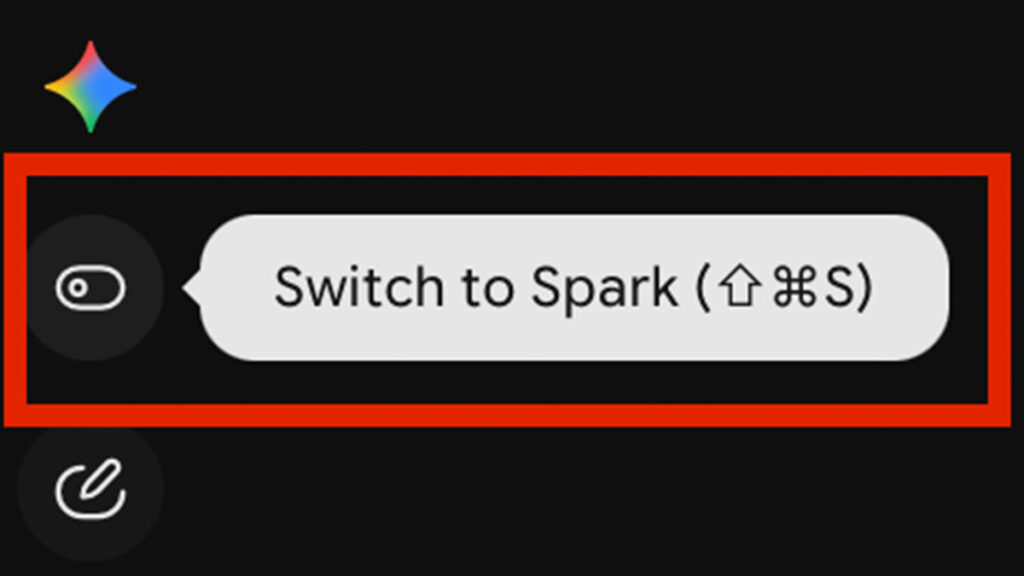
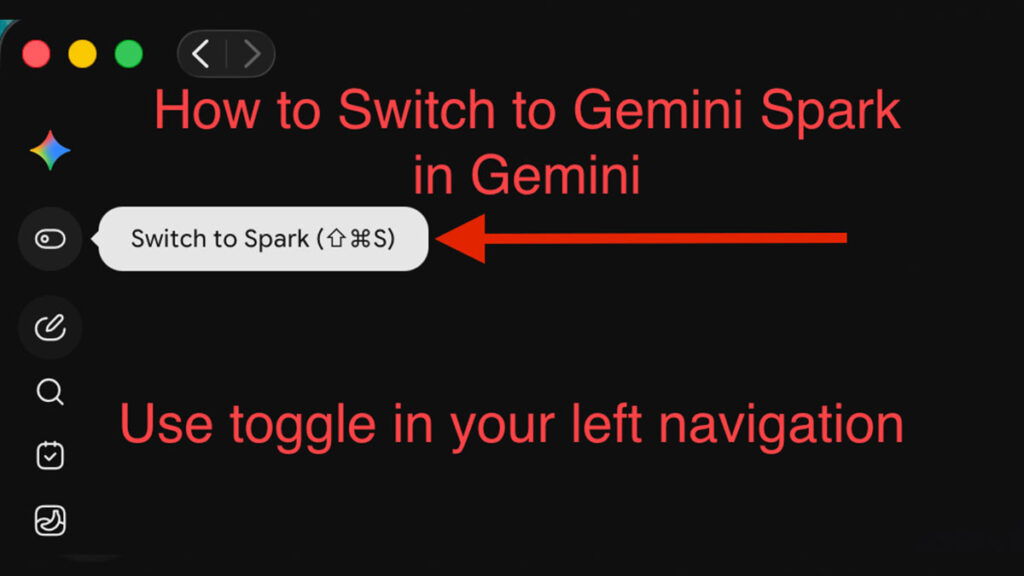
Select Change mode and then choose Switch to Spark.
Open Tasks
Create a new task or open an existing Spark task thread.
- Go to Gemini or open the Gemini mobile app.
- Sign in using your eligible personal Google Account.
- Open the Gemini sidebar or navigation menu.
- Select Change mode.
- Select Switch to Spark.
- Open Tasks.
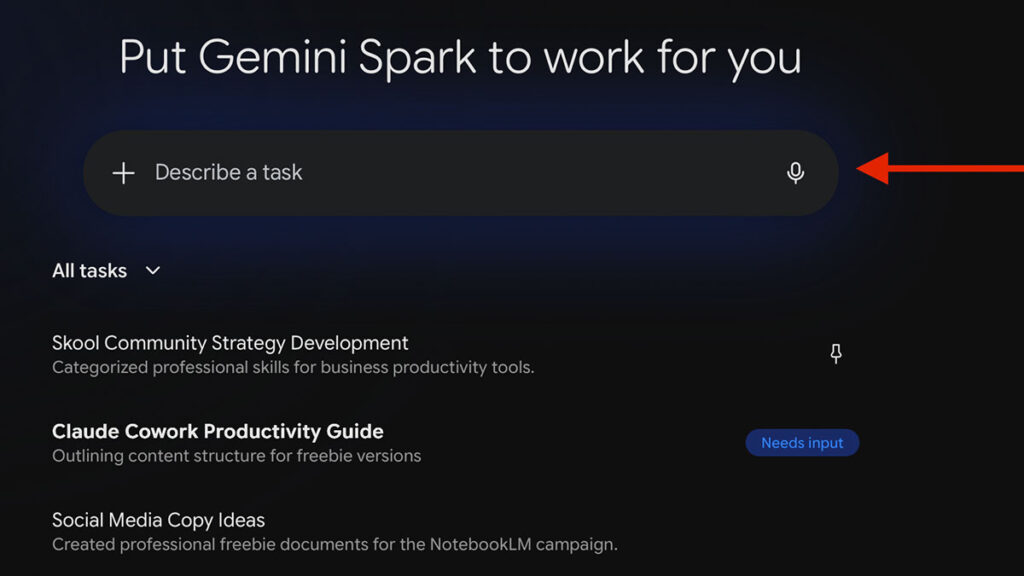
- Enter the task you want Spark to manage.
The interface may look slightly different on desktop, Android, iPhone, or iPad, but the overall process is similar.
How to use Gemini Spark step by step
Your first Spark workflow should be useful, easy to verify, and relatively low-risk. Research, summaries, document organization, and planning are generally better starting points than purchases, deletions, account changes, or external communications.
Choose one clear outcome
Do not begin with a vague request such as “help me manage my business.” Choose one result that you can recognize and verify when it is complete.
- Create a weekly summary of important AI news.
- Review meeting notes and create an action list.
- Compare selected documents in a structured table.
- Organize research from selected Drive files.
- Create a weekly content-planning brief.
Define what a successful result looks like
Decide what Spark must deliver before writing the task. A clear completion standard makes the workflow easier to evaluate.
- What is the main goal?
- Which information should Spark use?
- Which steps are essential?
- What should the final output include?
- What should Spark exclude?
- Which actions require your approval?
Write detailed task instructions
Explain the goal, approved sources, important steps, required output, timing, and guardrails. You do not need technical language, but you do need enough detail for Spark to understand what completion means.
Add the necessary sources and skills
Spark can use information from supported sources that you make available. Add only the context required to complete the task.
- Upload supported files.
- Add selected files from Google Drive.
- Add a supported notebook.
- Use approved Connected Apps.
- Reference an existing skill by entering a slash or at symbol.
Submit the task
Review your instructions and attached sources, then submit the task. Spark will begin planning and completing the work. Stay available in case it needs clarification, permission, or browser takeover.
Monitor the task
Open the task thread and work panel to review completed steps, current progress, planned steps, files, schedules, connected apps, and any input Spark needs from you.
Review and improve the result
Identify what Spark misunderstood, omitted, or formatted incorrectly. Improve the instructions, add examples, narrow the sources, and test the workflow again before converting it into a reusable skill or schedule.
How to write an effective Gemini Spark task
Strong Spark instructions normally contain six elements: the goal, sources, process, output, guardrails, and timing.
Goal
State the exact result Spark should accomplish.
Sources
Identify which files, apps, messages, websites, notebooks, or skills it may use.
Process
Explain the important steps and evaluation criteria.
Output
Define the required structure, format, detail, and destination.
Guardrails
State what Spark must not do without approval.
Timing
Explain when the result is needed or whether the task should repeat.
Example Gemini Spark task
Copy and customize this Spark instruction
How to improve a weak Spark task
When the first result is too generic, add:
- A required heading or table structure
- Specific sources and date ranges
- An example of a strong result
- Rules for prioritizing information
- Information that must be excluded
- The expected length and detail level
- Actions that require your approval
How to monitor and manage Gemini Spark tasks
Spark can continue working on eligible tasks in the background, but it should not be treated as an agent you never need to check.
Open the task thread and work panel
- Open Gemini.
- Switch to Spark.
- Select Tasks.
- Open the task thread you want to review.
- Open the progress chip or task work panel.
Review Spark’s progress
The progress area can show completed steps, the current step, and planned steps. This allows you to identify misunderstandings before Spark reaches an important action.
Review files Spark read or updated
The work panel can show files Spark read, created, or changed. Open important files and verify facts, formatting, calculations, and actions before relying on the result.
Take control of the remote browser
Some Spark tasks can use a remote browser. You can observe the browser, take control, complete a step yourself, and then return control to Gemini.
Use browser takeover when a website requires a password, payment details, sensitive information, confirmation, or another action that you should complete personally.
Do not enter passwords, payment information, or highly sensitive information directly into a Spark task thread. Take control of the browser and enter necessary information directly on the website instead.
Gemini Spark tasks vs. skills vs. schedules
Tasks, skills, and schedules are the three main building blocks of Gemini Spark. A simple way to remember them is: task equals what, skill equals how, and schedule equals when.
| Spark feature | What it controls | Example | Best use |
|---|---|---|---|
| Task | The complete goal or project | Create this week’s business intelligence brief | When you want Spark to produce a defined outcome |
| Skill | Reusable instructions and context for completing work | Always format briefs using my preferred structure | When you repeat the same rules, style, or process |
| Schedule | The time or condition that triggers a task | Run the business brief every Monday morning | After the task has been tested and is safe to automate |
Test a task manually before scheduling it. Once the task produces dependable results, save its repeatable method as a skill. Add a schedule only after you understand how the workflow behaves.
How to create a Gemini Spark skill
A Gemini Spark skill is a saved set of reusable instructions and supporting context that teaches Gemini how you want a certain type of work completed. Spark can apply a relevant active skill automatically, or you can select one for a specific task.
Create a skill with Gemini
- Open Gemini and switch to Spark.
- Open Skills.
- Select Create with Gemini.
- Describe what the skill should do.
- Follow the instructions in the task thread.
- Review and refine the generated instructions.
- Save and test the skill in a real task.
Create a skill from a recommended template
- Open the Spark Skills page.
- Find a template under Recommended.
- Select Add skill.
- Open the skill from your Active list.
- Edit its name, description, and instructions.
- Save and test the customized skill.
Create a skill manually
- Open the Spark Skills page.
- Select Create manually.
- Enter a clear skill name.
- Write a description explaining what it does.
- Add detailed instructions and examples.
- Define the required output format.
- Save and test the skill.
What to include in a strong Spark skill
- A specific purpose
- When Spark should use the skill
- The steps it should follow
- The tools or sources it may use
- Rules for evaluating information
- The exact output structure
- Examples of a strong result
- Actions that require human approval
Upload an advanced Spark skill
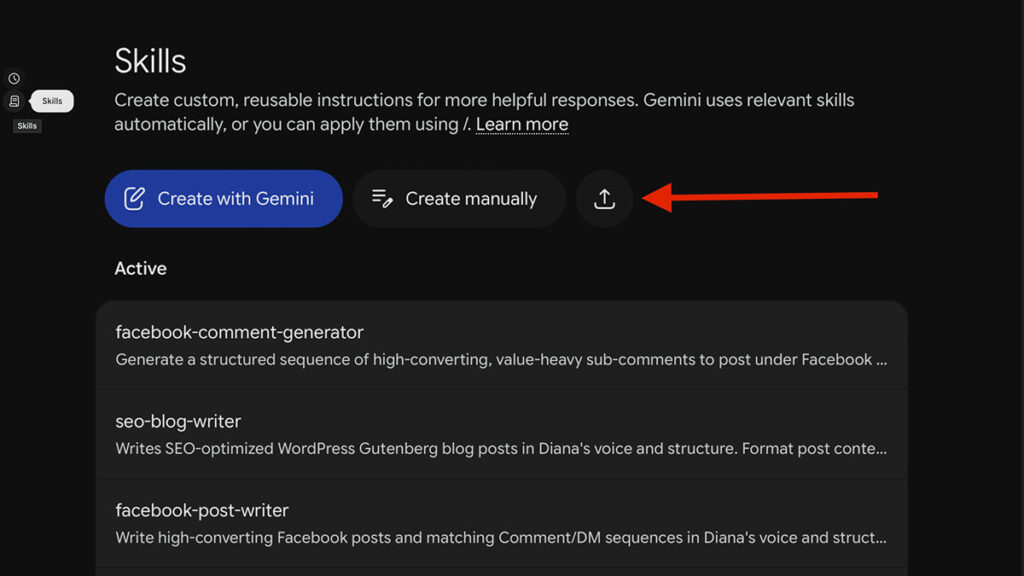
Advanced users can upload a direct SKILL.md file or a ZIP archive containing a SKILL.md file in its main folder.
Current upload requirements:
- Upload a
SKILL.mdfile or ZIP archive containing one. - Place
SKILL.mdin the archive’s root or main folder. - Use lowercase words separated by hyphens for the skill name.
- Keep the total upload size at or below 100 MB.
- Use supported plain-text files for supporting materials.
- PDFs, Word documents, spreadsheets, and images are not supported in skill uploads.
- Scripts requiring internet access are not currently supported.
- Scripts cannot perform actions or requests on external websites.
How to create a Gemini Spark schedule
A schedule tells Spark when to run a task. A workflow can run at a selected time or in response to a supported condition.
Create a schedule conversationally
- Open Gemini and switch to Spark.
- Open Tasks.
- Describe what Spark should do.
- State when or under which condition it should run.
- Submit the instruction.
- Review the task and its schedule.
Example scheduled Spark task
Create a time-based schedule manually
- Open Gemini and switch to Spark.
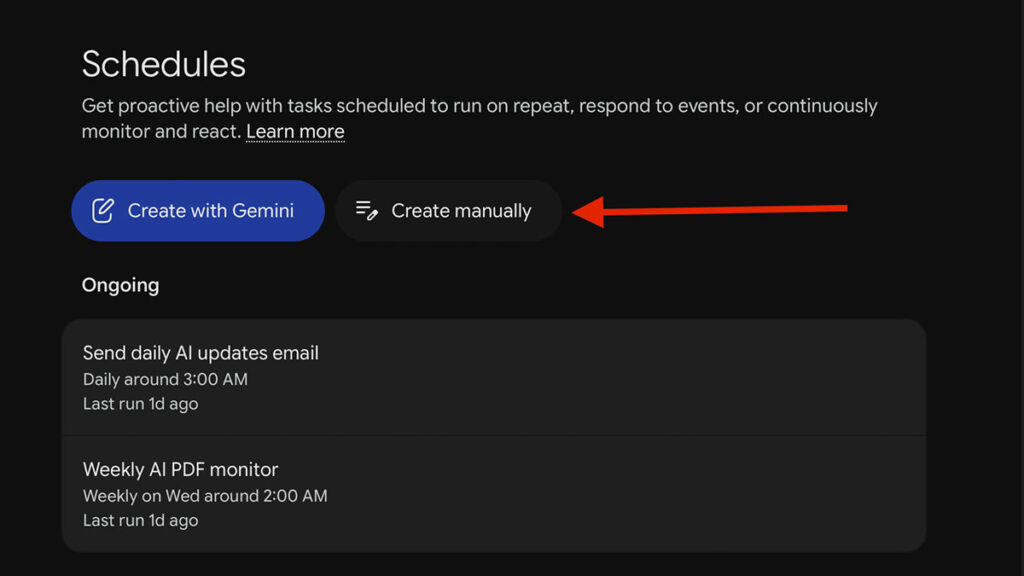
- Open Schedules.
- Select Create manually.
- Enter a schedule name.
- Choose when it should run.
- Enter the task instructions.
- Create the schedule.
- Use Run now to test it before relying on it.
Manual schedule creation is designed for time-based schedules. Gmail-triggered schedules and monitors can be created through conversational instructions.
Types of Gemini Spark schedules
- Time-based schedules: Run once, hourly, daily, weekly, monthly, or yearly.
- Gmail-triggered schedules: Run when an email satisfies a supported Gmail filter.
- Monitors: Check a condition periodically throughout the day and act when the condition is satisfied.
Monitors are not instant alerts. Spark generally checks monitor conditions every few hours, so monitors are not appropriate for urgent, rapidly changing, or highly time-sensitive events.
Manage a Spark schedule
Use the Schedules page or the related task thread to review, edit, pause, resume, run, or delete a schedule. Review scheduled workflows regularly instead of assuming every unattended run will behave exactly as expected.
What Gemini Spark can do with Google Workspace
Spark can work with supported Google Workspace services when Google Workspace is connected to Gemini Apps and the required permissions are enabled.
Gmail
Search and summarize email threads, draft replies, organize selected messages, and use supported Gmail conditions to trigger workflows.
Google Calendar
Review availability, help plan meetings, respond to supported invitations, and prepare calendar-related actions.
Google Drive
Search for files, review selected file content, locate recent documents, and organize supported information.
Google Docs
Create drafts, add summaries, organize notes, and work with supported document content.
Google Sheets
Create and organize spreadsheets containing structured data, tables, and supported formulas.
Google Slides
Prepare presentation drafts and organize slide content from approved instructions and sources.
Available apps and actions can change based on your account, connected services, permissions, device, location, and Google’s current feature support. Review Spark’s work before allowing it to edit, delete, send, schedule, purchase, or publish anything.
Gemini Spark examples and use cases
Gemini Spark is best suited to workflows with a clear outcome, repeatable process, and information you are comfortable allowing Spark to use.
Research assistant
Research a topic, compare sources, track updates, and create a cited summary.
Weekly business brief
Summarize selected messages, files, deadlines, risks, and priorities.
Content planning
Review approved topics and create a structured weekly content plan.
Inbox organization
Summarize selected emails, identify action items, and organize recurring newsletters.
Document organization
Review selected Drive files and organize important information in a table.
Meeting follow-up
Turn approved meeting notes into decisions, owners, priorities, and next steps.
How to get better results from Gemini Spark
Start with a narrow task
“Manage my business” is too broad. “Review these five files and create a table of unresolved decisions” is focused and testable.
Specify the sources
Tell Spark which Gmail label, Drive folder, files, websites, notebook, date range, or skill it should use.
Define the final deliverable
State whether you want a summary, table, document, spreadsheet, presentation, email draft, action list, or another format.
Explain how information should be evaluated
Define what counts as important, credible, urgent, relevant, complete, duplicated, or outside the task’s scope.
Provide examples
A sample output, heading structure, writing style, or table format can improve a workflow more than adding vague directions such as “make it better.”
Separate preparation from external action
Ask Spark to research, organize, compare, and draft first. Require approval before it sends, publishes, purchases, books, deletes, submits, or changes anything.
How to use Gemini Spark safely
Spark can work with connected apps, files, websites, browser sessions, remote computer data, and other authorized information. That makes it more capable than an ordinary chatbot, but it also requires stronger supervision.
- Start with low-risk and reversible tasks.
- Connect only the information required for the task.
- Review important instructions before submitting them.
- Monitor tasks involving private information.
- Do not type passwords into task threads.
- Do not type payment information into task threads.
- Use browser takeover for sensitive steps.
- Require approval before sending or publishing.
- Check files and messages Spark creates or changes.
- Pause schedules you are no longer actively using.
Be aware of prompt injection
An AI agent may encounter hidden or misleading instructions inside websites, messages, documents, code, or other content. Those instructions may attempt to redirect the agent away from your original request.
Closely supervise tasks involving unfamiliar websites, connected accounts, sensitive documents, purchases, deletions, or actions where a mistake would have a meaningful consequence.
Understand how Spark uses and stores data
Spark may process information from your tasks, schedules, skills, Connected Apps, Personal Intelligence, websites, remote browser, and remote computer. Remote browser information can include page content and cookies used to keep you signed in. Remote computer information can include files, code, and task-related data.
Spark may share information required to complete a task with connected services, websites, and other third parties. Only provide access to information that is necessary for the workflow.
You can delete saved remote browser data and manage or clear remote computer information from your Gemini Spark settings.
What happens when you turn Gemini Spark off
Turning Spark off deletes saved remote browser and remote computer data. Your tasks and schedules are paused rather than deleted, and your chats are not automatically deleted.
If you turn Spark back on, paused tasks and schedules may resume automatically. Review active schedules before re-enabling Spark so an older workflow does not restart unexpectedly.
Current Gemini Spark limits and restrictions
Gemini Spark remains an experimental product. Understanding its current limits will help you avoid creating workflows that are too urgent, sensitive, or complex to run reliably without supervision.
15 concurrent tasks
Spark currently allows up to 15 tasks to run at the same time.
50 active schedules
You can currently maintain up to 50 active Spark schedules.
Approximate start times
Scheduled tasks may not begin at the exact moment requested.
Periodic monitoring
Monitors generally check conditions every few hours rather than continuously.
Scheduled tasks may also be delayed by usage limits or periods of high demand. Avoid using Spark schedules or monitors for emergencies, security alerts, immediate purchasing, fast-moving prices, or other situations where a delay could create a meaningful problem.
Common Gemini Spark problems
Gemini Spark is not showing on my account
Confirm that you are using an eligible personal Google Account, have Google AI Ultra, are at least 18, have Keep Activity enabled, are using English, and are accessing Gemini from a currently supported location.
My task stopped or needs attention
Open the task thread and work panel. Spark may need clarification, confirmation, access to a file, permission to use an app, or for you to take control of the remote browser.
My scheduled task did not run
Check whether the schedule is paused, Spark is enabled, your usage limit was reached, or 15 other tasks were already running. Schedule start times are approximate and may also be delayed during periods of high demand.
I cannot create another schedule
Spark currently supports up to 50 active schedules. Pause or delete an existing schedule before creating or resuming another one.
The output is too generic
Add a required format, source rules, date range, selection criteria, examples, exclusions, and a clearer definition of completion.
Spark used the wrong information
Narrow the approved sources. Name the exact Drive folder, files, Gmail label, website, notebook, date range, or skill Spark should use.
Spark is taking an action I do not want
Stop the task or take control of the remote browser. Then update the instructions to state which actions are prohibited or require confirmation.